How to Back Up and Convert Your Audible Library
The books you bought on Audible can live on your own drive, not just in an app. OpenAudible signs in to your account, downloads every book you own, and converts them to ordinary M4B or MP3 files that play on almost anything. Setup takes a few minutes; the rest runs on its own.
What you'll need
- A copy of OpenAudible (free download)
- Platform: Windows, Mac or Linux
- Your Audible account sign-in
- Disk space: up to about 60 MB per hour of audio for each copy (older titles are about half that). OpenAudible keeps the original Audible download alongside the converted file, so a 15-hour book can take close to 2 GB.
The free download connects, syncs and downloads your whole library, so your books are backed up before you spend anything. Converting them to M4B or MP3 is the step a license unlocks.
Steps
1. Install and open OpenAudible
Get the installer for your platform from the download page and run it. Homebrew, Chocolatey and Linux install options are listed there too.
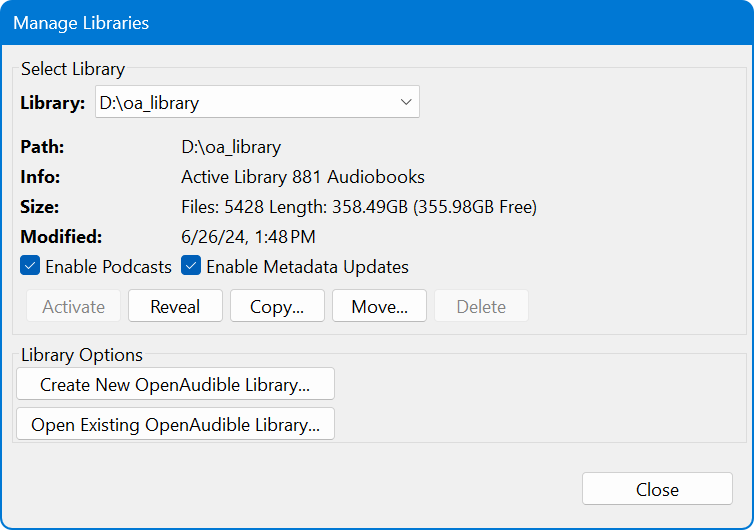
2. Choose where your library lives (optional)
By default your books are saved in an OpenAudible folder in your home
directory (~/Library/OpenAudible on a Mac). An audiobook library gets
large, so if you have a bigger drive or a network share, open
and move the library there now,
before anything downloads. OpenAudible's own settings stay where they are.
3. Pick a format
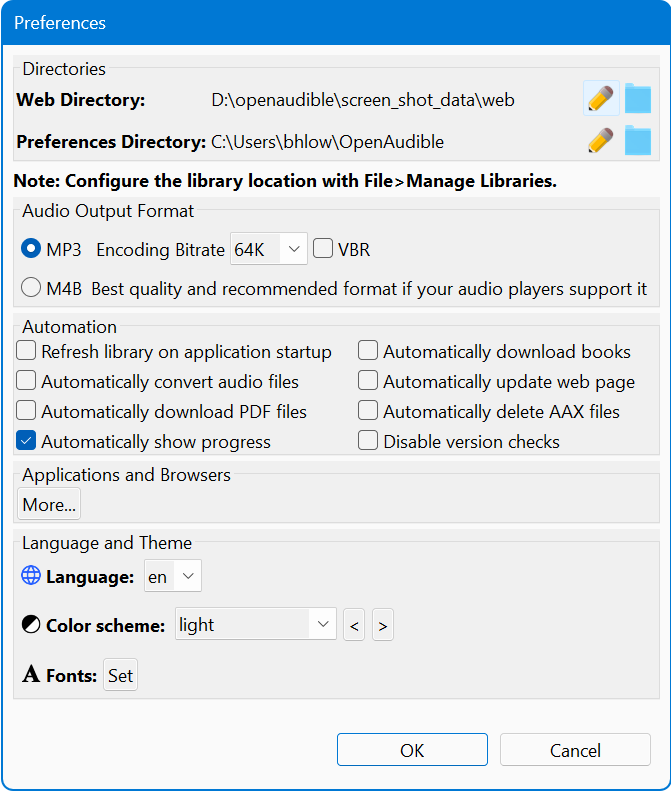
Open . M4B is the default and the right choice for most people: one file per book, with chapters, cover art and resume position, and it plays in Apple Books and every audiobook player app. Choose MP3 if your device only plays MP3, such as many car stereos, swim players and kids' players.
4. Connect to Audible
Choose and sign in to your account. OpenAudible loads your whole library into the book list.
5. Start the downloads
When the sync finishes, OpenAudible asks whether to start downloading and converting. Click Yes and it works through your entire library. To do it a book at a time instead, click No, select the books you want, and use and then (or MP3).
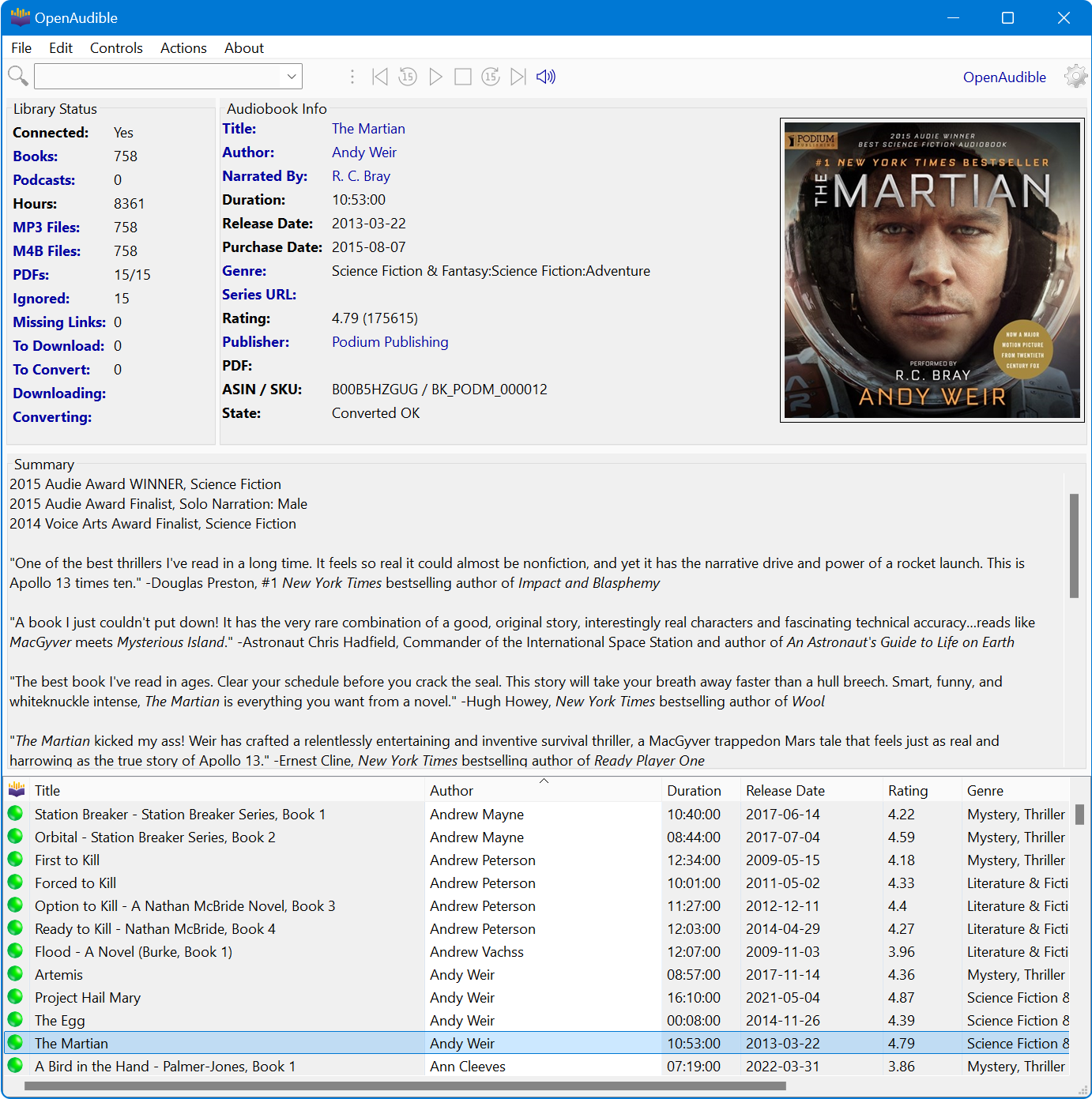
A big library takes hours. You can keep using your computer. Click the Downloading or Converting lines in the Library Status panel to see what is in progress.

6. Find your files
Select a finished book and use to open its folder. A green dot in the list means the book is converted and ready to play.
7. Keep it up to date
After you buy new books, run to pick them up, then download and convert them the same way.
Make it a real backup
A library on one drive is one drive failure away from gone. Copy the library folder to an external drive, a NAS or your usual backup tool. It holds the converted books and the original Audible downloads, so you can convert again later without downloading again.
Short on space? Preferences can delete the original downloads after conversion. That saves about half the space, but your converted files then become the only copy you have outside Audible.
Common problems
- Sign-in fails or your library is empty. Make sure you are signing in to the Audible region your account belongs to, for example audible.co.uk rather than audible.com. If you are not sure, it is the site you normally use to sign in to Audible on the web.
- A book is stuck downloading or converting. Use , then select the book and start it again from the menu.
- The convert step asks for the full version. Your downloads are complete and safe; converting needs a license.
- Not sure where a book is up to? Select it and check the State field in the Audiobook Info panel: downloaded, converted, or ready to play.
What's next
Once your library is on your own drive, you can do a lot more with it: put a book on a Yoto card, transcribe a book to searchable text, export your library to a spreadsheet or a cover-art poster, or listen from any browser on your network with the built-in web server. The documentation covers every feature, and the tutorials walk through the popular ones.
Download OpenAudible and back up your library today.
Something unclear, out of date, or a tutorial you'd like to see? Send feedback or request a tutorial →