Audible Books on a Garmin, COROS or Galaxy Watch
A watch with music storage can play an audiobook on a run with your phone left at home. Audible's app doesn't run on most of them, and the watches are picky: most play MP3 best, some balk at one ten-hour file, and finding your place with two buttons is slow. Short, numbered MP3 tracks, one per chapter, avoid all three. OpenAudible makes them with Split for Yoto — the same setting that builds Yoto cards works for watches too.
What you'll need
- OpenAudible (free download) with your Audible account connected
- A watch with music storage, and its USB cable
- Bluetooth headphones paired with the watch
Make the MP3s
1. Turn on Split for Yoto
Open , go to the General tab, and under Split Audio Settings select Split for Yoto. It produces MP3 tracks, one per chapter, with any chapter over 60 minutes broken into shorter pieces.
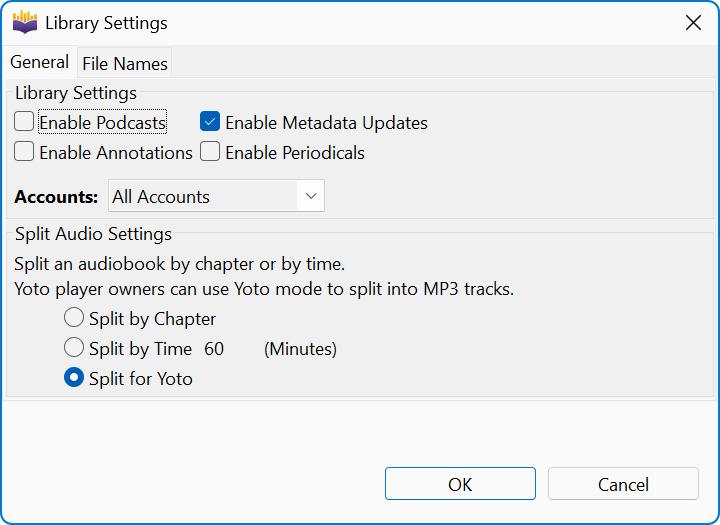
2. Download and convert the book
Download the book and convert it with .
3. Split it
Right-click the book and select . OpenAudible writes a folder of numbered MP3 tracks and opens it for you.
4. Send the tracks to a Garmin watch
Garmin watches with music storage — the Forerunner 265, 965 and 970, Fenix 7 and 8, epix, Enduro, Venu 2 and 3, vivoactive 4 and 5, MARQ and others — play MP3 files sent from a computer with Garmin Express. Plug in the watch, open Garmin Express, select the watch, then Music, tick the tracks and choose Send to Device. Garmin's Downloading Personal Audio Content page walks through it; the manual for your own model has the same steps.
Not every Garmin has music storage — base models of several lines do not. Garmin keeps a list: Which Garmin Smartwatches Have Music Storage?
Stopping at the end of a chapter makes it easy to pick up again: next time, start the next track.
Other watches
The same folder of MP3s works on other watches that store music on the watch itself:
- COROS (PACE 3, PACE 4, PACE Pro, APEX 2, APEX 2 Pro, APEX 4, VERTIX 2 and VERTIX 2S) — MP3 only. The watch shows up as a drive; copy the tracks into its Music folder. See Playing Music from Your COROS Watch.
- Samsung Galaxy Watch — send the tracks from your phone with the Galaxy Wearable app. It takes MP3 and M4A. See Samsung's guide.
- Amazfit — only some models have music storage; check yours before you split.
Prefer fixed-length parts? Split by Time
If chapters are too long, or uneven, for a watch with poor seeking, choose Split by Time in Library Settings instead and set a part length, such as 15 or 30 minutes. Each part holds as many whole chapters as fit, and a chapter is cut only when it is longer than the limit on its own. Unlike Split for Yoto, the parts come out in the book's converted format: M4B if that is your output format in . Convert to MP3 first if your watch needs MP3. See Splitting and Joining Audiobooks for the details.
If something goes wrong
- The book doesn't show up in Garmin Express. Make sure you are sending the split MP3 tracks rather than one large M4B; Garmin users report long M4B files not appearing.
- The watch runs out of space. Lower MP3 quality in , then convert and split again. The default 64 kbps is roughly 28 MB an hour.
- The book has no chapters. Use Split by Time instead.
Tell us what works
We can’t test every watch. If yours works well — or doesn't — or we missed something, let us know and we'll add it here.
Next
Download OpenAudible to put your first book on your watch, or see Audible Books on Swim and Older MP3 Players.
Something unclear, out of date, or a tutorial you'd like to see? Send feedback or request a tutorial →