How to Split an Audiobook by Chapter (and Join Files Back Together)
A single M4B file is the best way to keep an audiobook: one file, with chapters, cover art and your place saved. But kids' players, watches, swim players and car stereos often want short tracks instead. OpenAudible splits a book into one file per chapter in a couple of clicks, and joins a folder of loose parts back into one book.
What you'll need
- A copy of OpenAudible (free download) with a license; splitting and joining are full-version features
- Platform: Windows, Mac or Linux
- To split: a book that is already converted to M4B or MP3 (see Back Up and Convert Your Audible Library)
- To join: a folder of MP3, M4A, M4B or WAV parts
Do you need to split?
Probably not, if you listen in Apple Books, BookPlayer, Smart AudioBook Player or another audiobook app: they read the chapter marks inside an M4B and remember your place. Split when a device needs it, for example:
- a player with a limit on track length or size, such as a Yoto card
- a player that forgets your position inside a long file, as many swim players and car stereos do
- skipping by chapter on a device that only has next and previous track buttons
Split a book
1. Pick a split mode
Open , go to the General tab, and choose a mode under Split Audio Settings. You only set this once.
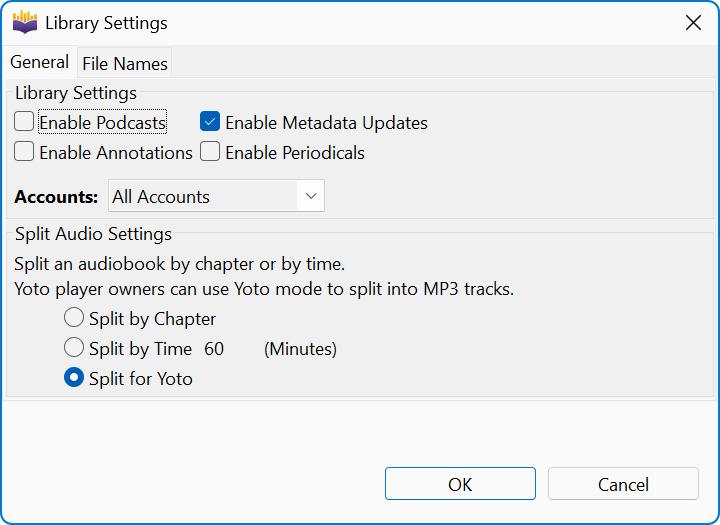
| Mode | What you get | Use it for |
|---|---|---|
| Split by Chapter (default) | One file per chapter, in the book's format (M4B stays M4B, MP3 stays MP3). | Most devices. |
| Split by Time | Parts no longer than the length you set (60 minutes by default, 5 minimum). Each part holds as many whole chapters as fit; a chapter is cut only if it is longer than the limit on its own. | Books with very long chapters, or players that work best with fewer files. |
| Split for Yoto | MP3 tracks that fit Yoto's per-track limits, with an over-long chapter cut into pieces. | Yoto Make Your Own cards. See the Yoto tutorial. |
2. Choose the format
Split by Chapter and Split by Time copy the audio without re-encoding, so the parts come out in the same format as the book. If you need MP3 parts, convert the book to MP3 first with . If a book has both an M4B and an MP3, the format chosen in wins.
3. Split it
Select one or more books and choose , or right-click the selection. The command is named after your mode, so it may read by Time or for Yoto instead. It is greyed out until at least one selected book has been converted.
With one book, its new folder opens when the split finishes. With several, a report lists what was split and what was skipped.
4. Find the parts
The split book appears in your library as a new entry with a green folder icon. Your original single-file book stays where it was. Each part is named after its chapter, numbered so it sorts in order, and tagged with the book's details, a track number and the cover art. Use to open the folder and copy the files to your device.
Want different settings? Change the mode and split the original again. The new folder gets a
numbered name such as Title_1, and you can delete the old one.
Split every book automatically (not usually recommended)
The Split Audiobooks setting in Library Settings splits each book as soon as it is converted. The split version replaces the single-file book, so you lose the M4B that audiobook apps handle best. Most people are better off splitting just the books they need for a particular device.
Join files into one book
Got a book as a folder of separate files, from a CD rip, a download or an old split? Join them into one file with chapters.
1. Put the parts in one folder
One book per folder, all parts the same type: MP3, M4A, M4B or WAV. Add a JPG or PNG if you
want it used as the cover. Files are ordered by the number in their name, so
Chapter 2 comes before Chapter 11 without any renaming.
2. Join
Choose (Ctrl+J, or ⌘J on a Mac) and select the folder. The parts are joined without re-encoding, and each one becomes a chapter named from its title tag or file name. WAV parts are encoded to your preferred format.
3. Import it
The joined file is saved in the same folder, named after it. OpenAudible then asks whether to import it into your library. Say yes to move it in alongside your Audible books.
Shortcut: drag a folder of parts onto the OpenAudible window to join and import it in one step.
Common problems
- The Split command is greyed out. The selected book has not been converted yet. Convert it first.
- "Has no chapter information." The book has no chapter marks to split on. Use Split by Time instead.
- A book was skipped. It would have produced only one part, because it is a single chapter or already short enough, or it is already a split book. Split the original single-file book instead.
- The parts came out as M4B but you wanted MP3 (or the other way round). Splitting keeps the book's format. Convert the book to the format you want, set it in Preferences, and split again.
- Some files are missing from a joined book. The parts were not all the same type. The first file sets the format and the rest of that type are joined; others are skipped. Convert the odd ones out, or move them to another folder.
- Chapters from the parts are gone after joining. Joining makes one chapter per file. Chapter marks inside each part are not carried over.
Next
Ready to load a device? Put an Audible book on a Yoto card. The documentation has the full details on splitting, joining and importing.
Download OpenAudible to split and join your own books.
Something unclear, out of date, or a tutorial you'd like to see? Send feedback or request a tutorial →