Put an Audible Audiobook on a Yoto MYO Card
A Yoto Player can play your own audiobooks and be added to an "Make Your Own" Yoto card. OpenAudible does that in three clicks with Split for Yoto; the Yoto app or website handles the upload and the card.
No Yoto? Steps 1–3 work well for most smart watches, swim MP3 players and older MP3 players too. See Smart watches, swim and older MP3 players.
What you'll need
- OpenAudible (free download) with your Audible account connected
- A Yoto account and at least one blank Make Your Own (MYO) card
- The Yoto app on a phone or tablet, for linking the card at the end
In OpenAudible
1. Turn on Split for Yoto
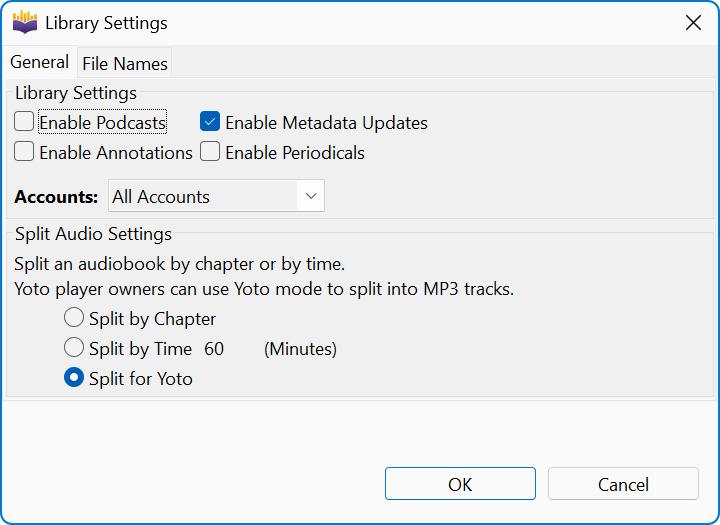
Open , go to the General tab, find Split Audio Settings, and select Split for Yoto. This one-time change stays until you change it.
2. Download the book and convert it to MP3
Select the book in your library, download it, and convert it to MP3 with . A book needs a finished audio file before it can be split.
3. Split it for Yoto
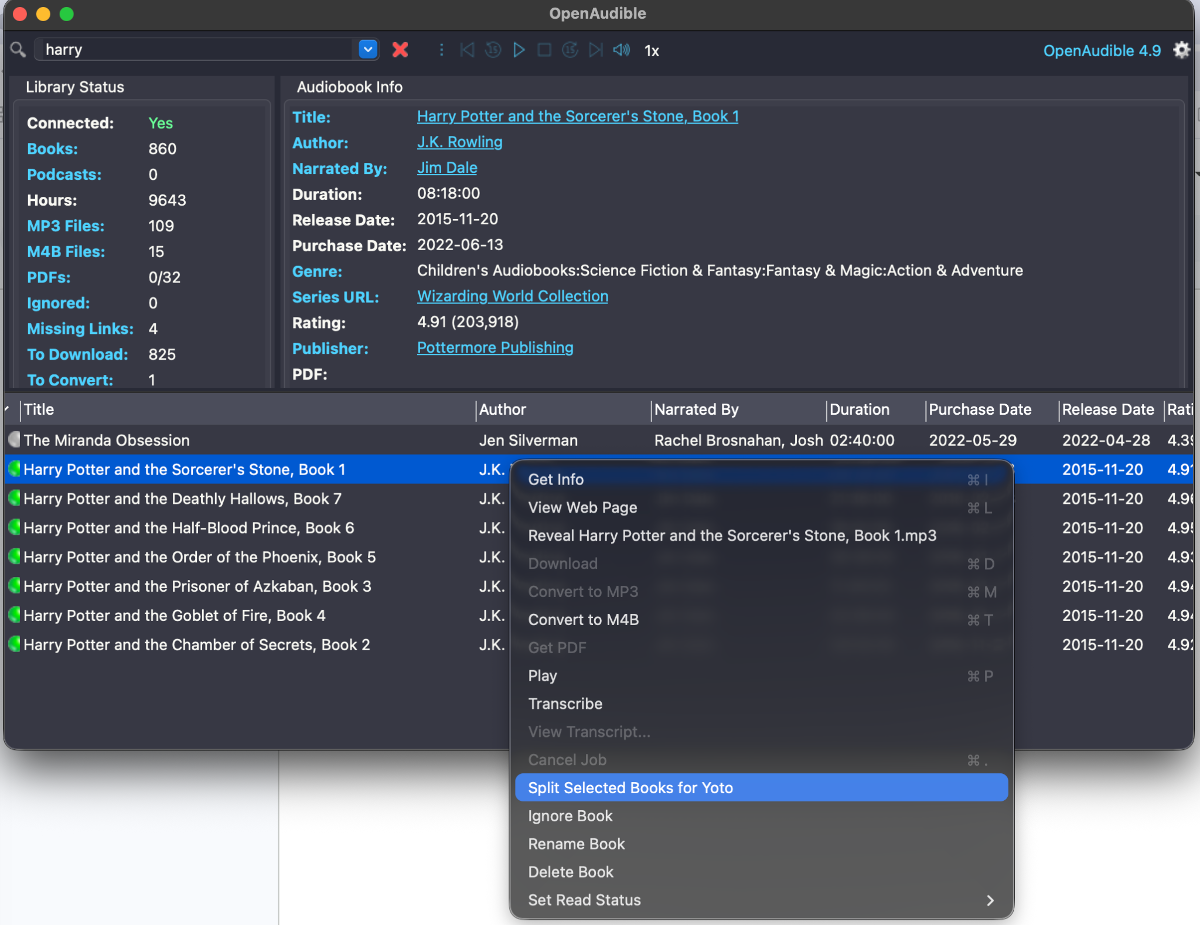
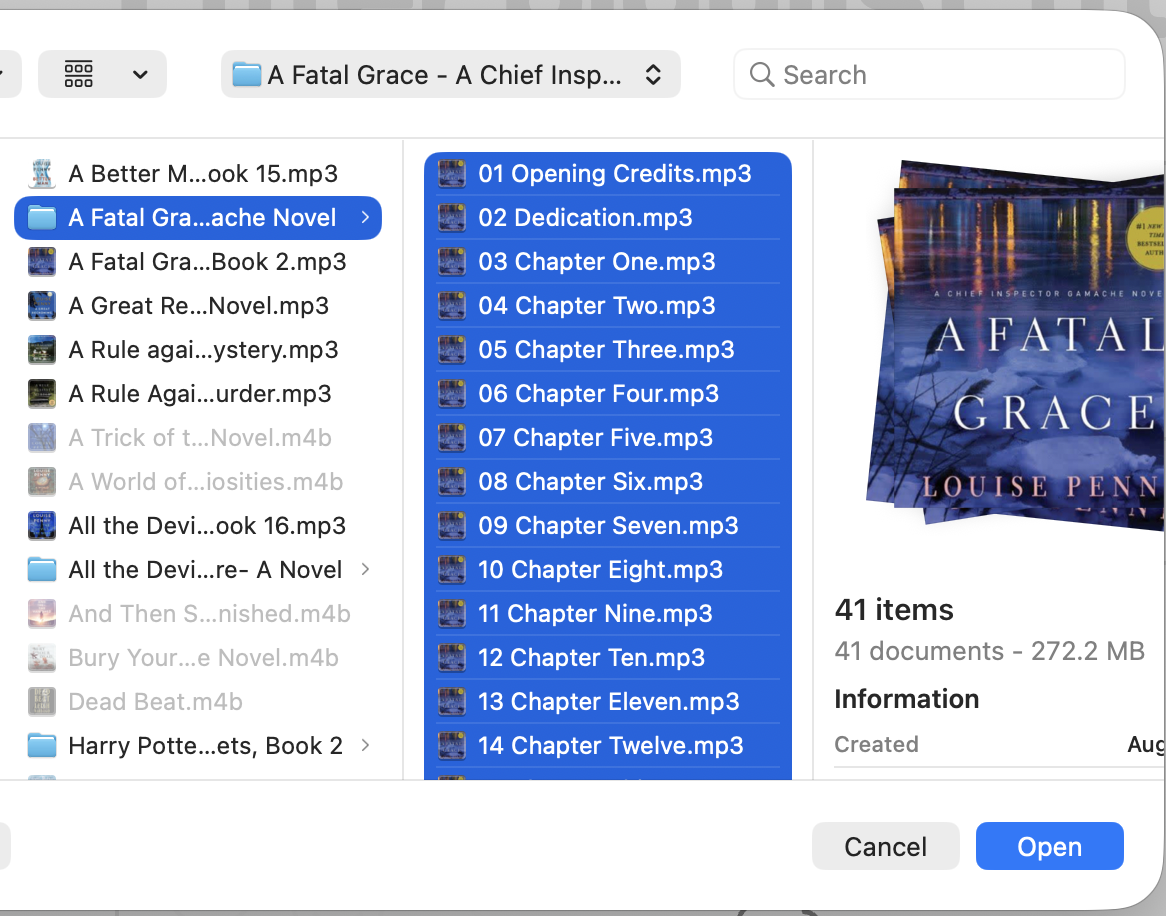
Right-click the book you want on your Yoto (or use the Actions menu) and select . Be patient: splitting a long book takes a while. OpenAudible writes a folder of numbered MP3 tracks, one per chapter, each sized to what Yoto accepts, and opens the folder for you. (If the menu still says , step 1 did not take.)
In Yoto
4. Upload the tracks to a playlist
- Sign in at my.yotoplay.com/my-cards — a browser is easier than the app for a folder of tracks. It opens in a new tab so these instructions stay put.
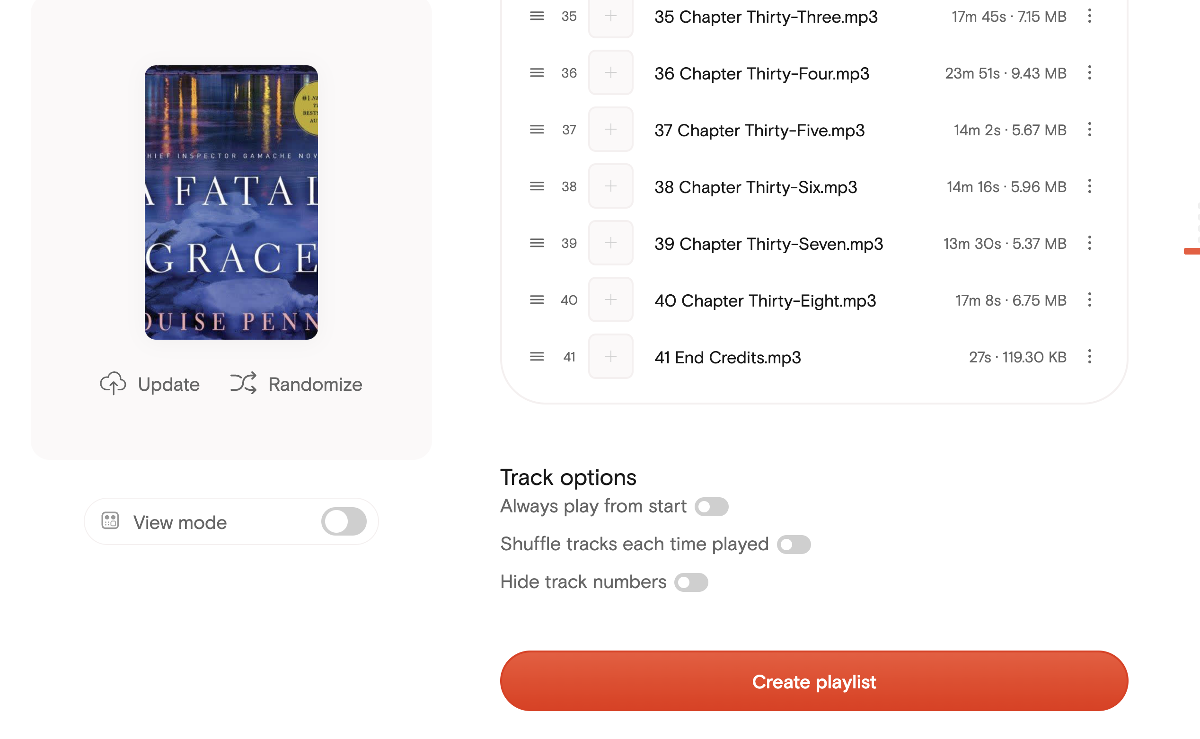
- Click Make a playlist and name it after the book.
- Click Upload File.
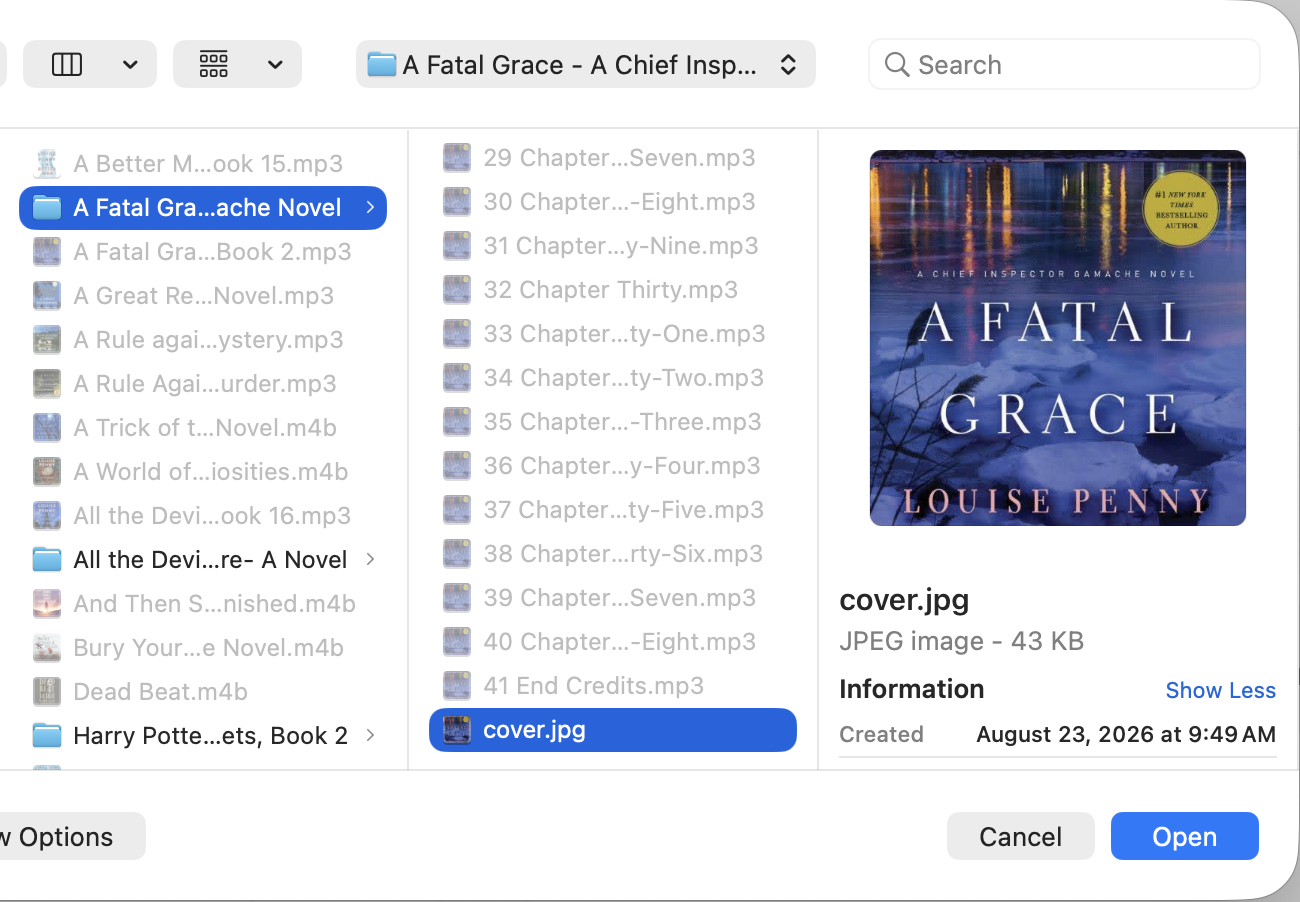
- Select all the chapters and add them. Make sure not to select the cover art (.jpg).
- Click Create playlist (Update playlist if you are editing one you already made).
- Optional: click Update under the picture of the card and add the .jpg cover art.
- Check the track order and save.

5. Link the playlist to a card
- Open the Yoto app on your phone or tablet — this step only exists there.
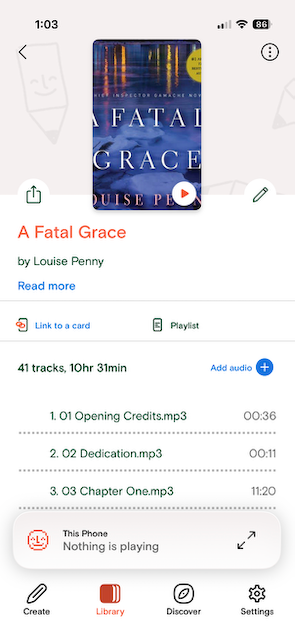
- Open the playlist you just made from your Library.
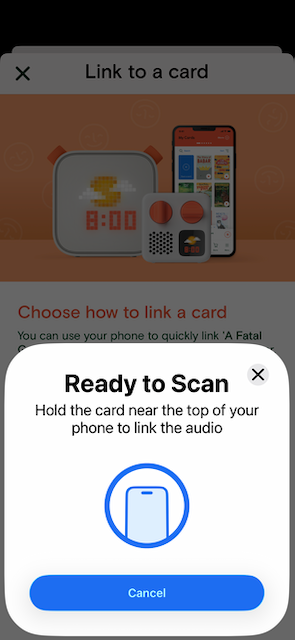
- Tap Link to a card.
- Tap a blank MYO card to the back of your Yoto Player or your phone when prompted.
Put the card in the player and the book starts. Each track is a chapter, so the back and forward buttons move by chapter.
Smart watches, swim and older MP3 players
The same split works well for most smart watches, swim MP3 players and older MP3 players. Many of them only play MP3, struggle with one long file, or lose your place in it. Short, numbered MP3 tracks, one per chapter, avoid all three.
Follow steps 1–3 above, then copy the folder of tracks to the device instead of uploading it to Yoto: drag it onto the player when it is plugged in as a drive, or use the watch's own app, such as Garmin Express. Leave out the .jpg cover art if the device lists it as a track.
If something goes wrong
- Yoto won't accept a file. Make sure the tracks came from Split for Yoto and not plain , and that you are on a current version of OpenAudible. Then split the book again.
- A long book won't fit on one card. A card holds up to 100 tracks and 500 MB, which fits most long books: the 10½-hour book above came to 272 MB. If yours is over, either lower MP3 quality in and convert and split again, or upload the book as two playlists on two cards — "Part 1" and "Part 2", breaking on a chapter.
- The book has no chapters. Choose in Library Settings instead, with a part length under 60 minutes.
- Tracks play out of order. Reorder them in Yoto's playlist editor.
Next
Download OpenAudible to make your first card, or see Yoto Players and MYO Cards in the documentation.
Something unclear, out of date, or a tutorial you'd like to see? Send feedback or request a tutorial →