Audible Books on Swim and Older MP3 Players
Swim MP3 players and older MP3 players often only play MP3, struggle with one ten-hour file, or lose your place in it. Short, numbered MP3 tracks, one per chapter, avoid all three. OpenAudible makes them with Split for Yoto — the same setting that builds Yoto cards works for almost any simple player.
What you'll need
- OpenAudible (free download) with your Audible account connected
- Your player and its USB cable or charging dock
Make the MP3s
1. Turn on Split for Yoto
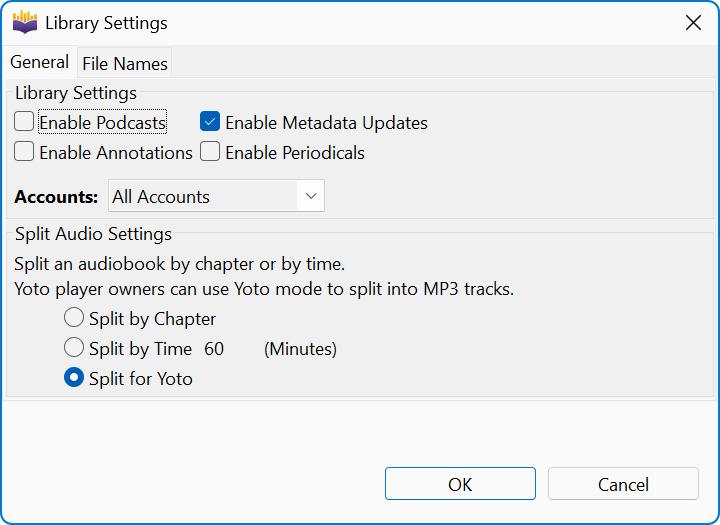
Open , go to the General tab, and under Split Audio Settings select Split for Yoto. It produces MP3 tracks, one per chapter, with any chapter over 60 minutes broken into shorter pieces.
2. Download and convert the book
Download the book and convert it with .
3. Split it
Right-click the book and select . OpenAudible writes a folder of numbered MP3 tracks and opens it for you.
4. Copy the folder to your device
Most players show up as a drive when plugged in: drag the folder onto it. The numbered file names keep the chapters in order. On a smart watch, see Audible Books on Smart Watches instead.
Swim MP3 players
Some swim players play M4B or M4A directly, so converting to MP3 is not always needed. The harder problem is finding your place: most have only a few buttons and no way to skip ahead within a track, so getting back to the middle of a long file means a lot of holding fast-forward. Chapter-sized tracks fix that — stop at the end of a chapter, and next time you start at the top of the next track.
Some popular players:
- Shokz OpenSwim Pro and the original OpenSwim — bone conduction, built-in storage. The Pro plays MP3, M4A and AAC among others.
- H2O Audio Stream 3 Pro — waterproof headphones with built-in storage.
- Sony Walkman NW-WS413 — waterproof earbuds with the player built in.
- More waterproof MP3 players on Amazon
Older MP3 players
The same tracks bring an old player back into service: a SanDisk Clip Jam or Clip Sport, an older Sony Walkman, a no-name player from a drawer, or an iPod shuffle, nano or classic. Most of these forget your place when switched off, or keep it only for the current track, so chapter-sized tracks matter here too. Drag the folder onto the player; an iPod is the exception and syncs through Finder or iTunes instead.
Prefer fixed-length parts? Split by Time
If chapters are too long, or uneven, for a player with poor seeking, choose Split by Time in Library Settings instead and set a part length, such as 15 or 30 minutes. Each part holds as many whole chapters as fit, and a chapter is cut only when it is longer than the limit on its own. Unlike Split for Yoto, the parts come out in the book's converted format: M4B if that is your output format in . Convert to MP3 first if your player needs MP3. See Splitting and Joining Audiobooks for the details.
If something goes wrong
- The cover art shows up as a track. Delete the .jpg from the device.
- Chapters play out of order. Some players sort by the date a file was copied rather than its name. Copy the tracks one folder at a time, or use the player's own sort setting if it has one.
- The book has no chapters. Use Split by Time instead.
Tell us what works
We can’t test every player. If yours works well — or doesn't — or we missed something, let us know and we'll add it here.
Next
Download OpenAudible to put your first book on your player, or see Audible Books on a Yoto Card.
Something unclear, out of date, or a tutorial you'd like to see? Send feedback or request a tutorial →